Visual testing for QA: a practical SnapDiff guide
Visual testing for QA means checking whether an interface looks right in the states your users encounter. With SnapDiff, you can capture an expected state and a changed state, compare their pixels, and attach annotated evidence to a bug report. Here is how to make that review repeatable.
By SnapDiff


A checkout can pass its functional tests while a button label wraps, an error message overlaps a field, or a sticky header covers important content. The action still works. The interface has regressed.
SnapDiff is a local-first browser extension for this kind of manual visual QA. It captures pages, compares screenshots, highlights A/B pixel differences, and exports annotated findings. It does not execute test cases or decide whether a change is a defect. You choose the states, inspect the evidence, and make that decision.
The screenshots below show the real SnapDiff interface with a fictional storefront and sample captures. They illustrate review workflows, not customer results or evidence of physical-device testing.
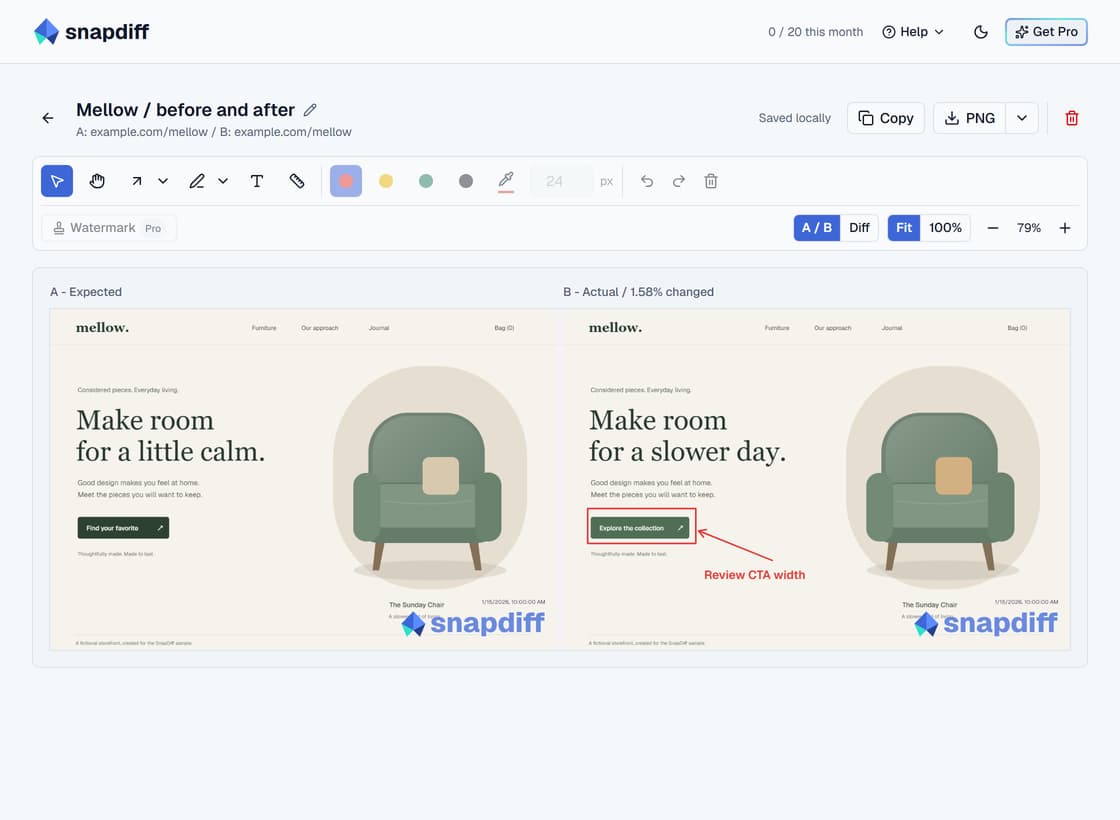
A/B review with an annotation on the changed button. Sample storefront, actual SnapDiff editor.
What can QA engineers test with SnapDiff?
Use SnapDiff to inspect rendered UI and record what you find. Start with the question you need to answer, then choose the smallest useful capture or comparison.
| QA task | Useful workflow | What to inspect |
|---|---|---|
| Visual regression testing | A/B comparison and pixel Diff | Unexpected spacing, typography, color, or layout changes |
| Design and UI review | Compare an imported reference with a capture | Alignment, component sizes, hierarchy, and missing content |
| Responsive layout testing | Chrome viewport presets or custom sizes, then Multi review | Wrapping, clipping, navigation changes, and content order |
| Localization testing | Chrome locale simulation and A/B review | Text expansion, translated labels, and locale-sensitive formatting |
| Accessibility review | Optional local axe check alongside a capture | Reported rule violations, followed by manual investigation |
| Exploratory testing and bug reporting | Single captures, annotations, and exports | Clear evidence of a specific state or visible defect |
Chrome supports all of these workflows in Free within the monthly allowance. Desktop Firefox 153+ supports capture, A/B and Multi comparison, annotations, exports, and optional axe checks. It does not support responsive viewport presets or browser locale simulation in either plan.
1. Run a repeatable visual regression check
Visual regression testing compares an interface against an expected earlier state to find unintended appearance changes. For a manual check, that expected state might be an approved release, a production page, or a screenshot attached to an acceptance criterion.
Control the page state before comparing pixels
A useful baseline is more than a URL. Record the build, browser, viewport, zoom, locale, and the actions needed to reach the state. Keep the account role and test data consistent too.
Before capturing, check that:
- Both pages show the same content, selected options, and authentication state.
- Fonts and images have loaded, and loading placeholders have disappeared.
- Cookie banners, dialogs, and expanded menus are in the same state.
- The viewport, browser zoom, and scroll position match where practical.
- Dynamic content such as timestamps, rotating banners, and stock counts is understood.
- Any expected UI changes are written down before reviewing the diff.
Use controlled test data where possible. If a carousel keeps moving, stabilize the page through your application's existing controls or capture a smaller area. SnapDiff is not a substitute for a deterministic test environment.
Capture the baseline and candidate
- Open the expected version and start capture from the SnapDiff extension toolbar.
- Choose A/B comparison. Use Viewport for the visible layout, Area for a component, or Full page for a longer page.
- Capture the expected state as A, then reproduce the same state in the changed version and capture it as B.
- Inspect the pair side by side first. Check whether the content and state are comparable before interpreting pixels.
- Switch to Diff to locate changes. Inspect the relevant region at 100% when native-pixel detail matters.
- Annotate the unexpected change and export the evidence. Record the acceptance decision in your issue tracker or release checklist.
For example, after a shared button style changes, compare the same product page before and after the update. Ask whether the CTA still has the expected width, whether its label fits, and whether the surrounding content moved. A changed button color may be intentional; a clipped label is a separate finding.
Read the diff as evidence, not a verdict
A highlighted pixel means the screenshots differ. It does not establish severity or explain the cause. Font rendering, changed content, and expected design updates can all produce differences.
SnapDiff's A/B Diff also supports images with different dimensions, including imported references. It aligns them at the top-left at native resolution without resizing. Pixels present in only one image count as changed; space outside both images does not. Matching viewports reduce noise, but they are not a requirement.
That distinction matters when a page becomes taller after adding an error message. The extra region is a real image difference, but QA still needs to decide whether the new height is expected. Do not treat a small changed area as low severity: a single obscured control can block a user.
For a shorter introduction to this workflow, read visual regression testing without CI setup.
2. Review responsive layouts at meaningful widths
Responsive testing should answer layout questions, not just produce a gallery of device names. Does navigation remain reachable? Does a long heading push the primary action out of view? Does a table overflow its container?
In Chrome, use a named responsive viewport preset or a custom viewport to capture the same state at different widths. Custom sizes use whole CSS pixels from 200 to 4096 per side, with a 16-million-pixel viewport ceiling, and render at 1x. Viewport, Full page, and Area capture are available for responsive review.
Choose a small matrix around your application's actual breakpoints. If a layout changes at 768 CSS pixels, inspect just below and just above that boundary, as well as a common narrow-phone width. Testing only a wide desktop and one phone size can miss the transition.
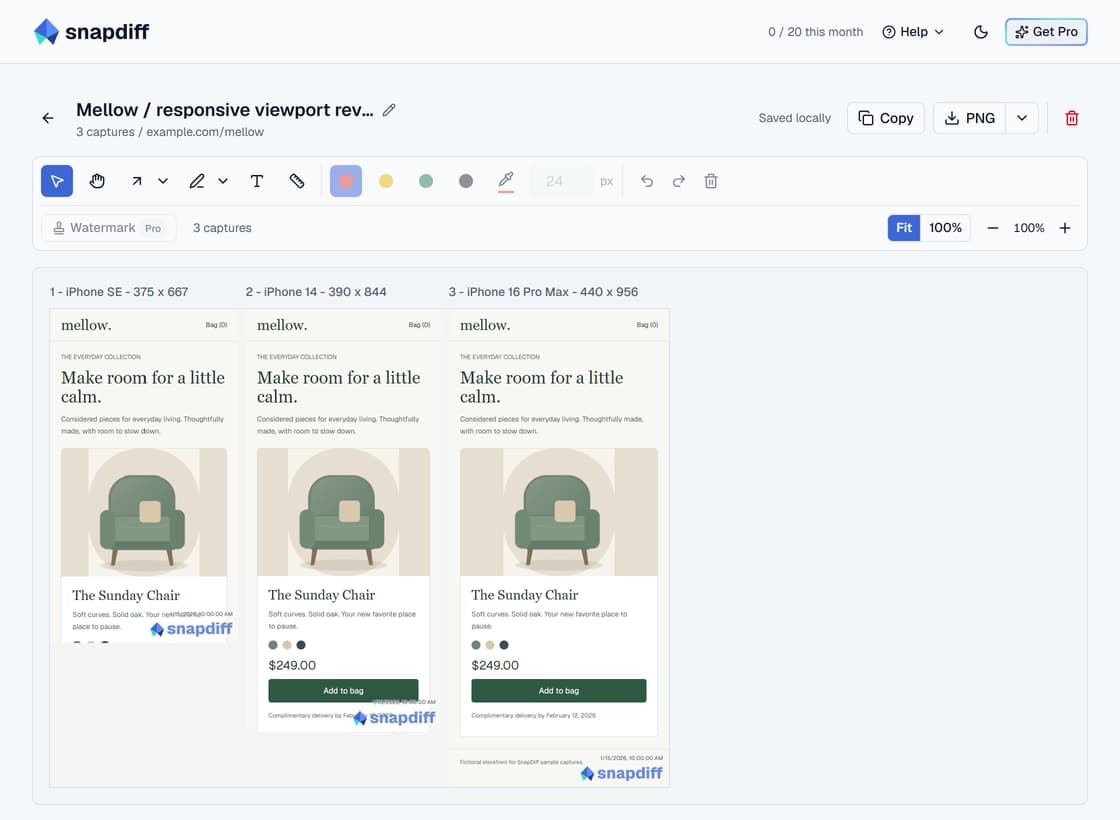
Multi keeps several viewport captures together for visual review. These are simulated viewports, not physical devices.
Use Multi to group 2-5 screenshots for side-by-side inspection. Multi is visual-only; it does not calculate a pixel diff. To investigate a regression at a specific width, make an A/B pair at that width before and after the change.
Check text wrapping, clipped buttons, overlapping controls, image proportions, and content order. Then interact with the live page to check keyboard access and usability. A screenshot cannot tell you whether a menu opens or a control responds to touch.
Viewport simulation does not reproduce physical hardware, mobile browser chrome, or another rendering engine. Keep real-device and browser coverage in your wider QA plan. Firefox can review and export existing responsive captures, but cannot create new simulated captures.
3. Check localized UI for expansion and formatting
Localization testing checks the interface in a language the application already supports. SnapDiff's Chrome locale simulation changes browser language and locale signals; it does not translate the page or add missing translations.
Capture the default-language state, select a supported locale, reload the page, and reproduce that state before taking the next capture. Verify that the application actually switched language. Sites may prioritize an account preference, cookie, or language-specific URL over browser settings.
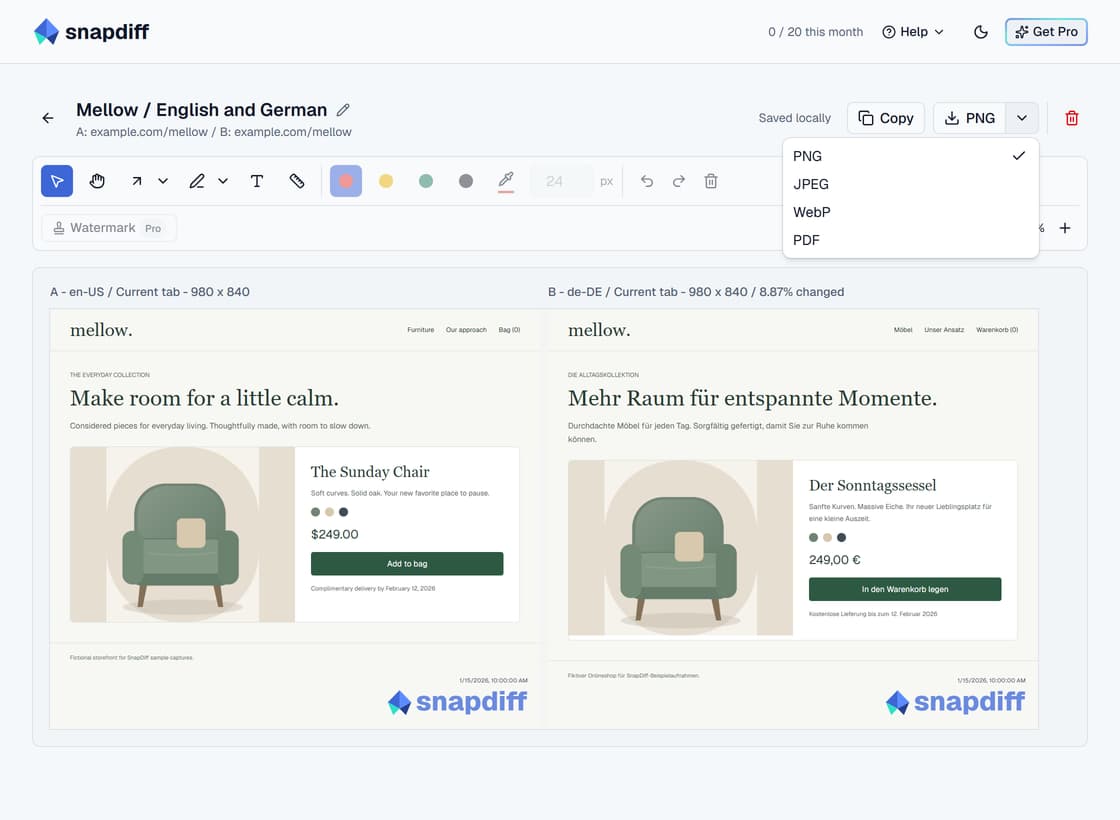
Review translated layouts side by side, then export the evidence. The fictional storefront supplies its own English and German content.
Look for truncated navigation labels, taller buttons, wrapped validation messages, fallback strings, and content that no longer fits a dialog. Check dates, numbers, and currency formatting against the application's requirements. A locale change alone does not establish that prices, currency conversion, or regional business rules are correct.
For languages with right-to-left layouts, check the application's own RTL behavior as well as text. Browser locale simulation does not guarantee that the site changes direction correctly.
Keep the viewport fixed when comparing languages so text expansion is easier to distinguish from a responsive layout change. Follow up in a narrow viewport for high-risk forms and navigation. Firefox does not offer locale simulation, although saved localized captures remain reviewable and exportable.
4. Add accessibility findings to the same review
Visual QA and accessibility testing overlap, but they are not interchangeable. A screenshot can reveal a clipped label or a barely visible focus indicator. It cannot establish an accessible name, reading order, or a complete keyboard interaction.
Enable SnapDiff's optional local axe accessibility check when capturing a relevant page state. Open the saved accessibility report to inspect the reported rules and affected elements. The check is available in Chrome and Firefox and runs locally.
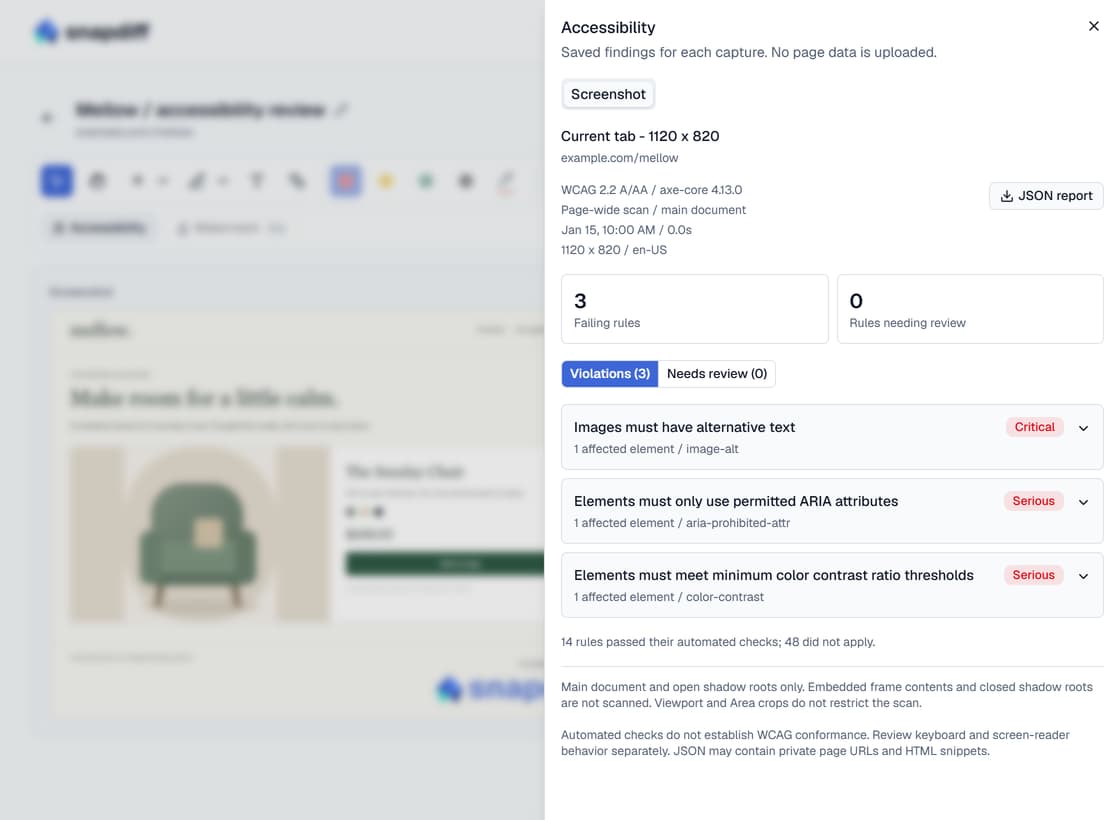
The sample page deliberately contains accessibility issues. The report shows actual local axe results for that sample, not a compliance score.
Treat the report as a starting point. Reproduce each relevant finding on the live page, inspect the affected element, and describe the user impact. Pair that with manual checks for keyboard navigation, focus order, zoom, and screen-reader behavior where appropriate.
Scan meaningful states, not only the initial page. Opening a dialog or displaying validation errors can introduce issues absent from the default view. A clean automated scan does not prove WCAG conformance. The W3C guide to evaluating web accessibility explains why evaluation needs more than automated tools.
5. Compare design intent and exploratory states
An approved reference can help answer a narrower question than "does this page look right?" Import a reference image and compare it with the implemented UI to review spacing, component dimensions, and visual hierarchy. For the mechanics, see before-and-after screenshot comparison.
Align scale and content where possible. SnapDiff does not automatically register a design export against the browser rendering or resize the images to make them match. A reference with different text, padding, or resolution can produce extensive pixel differences without proving an implementation defect.
During exploratory testing, capture states that are easy to lose: an empty search result, a validation error, a long translated label, or an expanded navigation menu. Annotate what is wrong while the context is fresh.
Use a selected-area capture for a focused issue and a viewport capture when surrounding context matters. For long pages, Full page can document layout continuity. On a growing page, Stop and save keeps the captured portion; it is not an unlimited or frozen archive of the page.
Turn screenshots into actionable bug reports
An image should make a bug easier to understand, not replace the reproduction steps. Mark the smallest relevant region, state the expected behavior, and explain the actual user impact.
For the sample button-width review, a hypothetical issue could read:
Title: Product CTA wraps after the shared button style update
Environment: Staging, candidate build under review
State: Product detail page, default variant, English locale
Viewport: 375 x 667 CSS pixels, 100% browser zoom
Steps: Open the product page and scroll to the purchase controls
Expected: The approved CTA label fits without clipping or overlap
Actual: The label wraps and crowds the adjacent delivery text
Evidence: Annotated before/after pair; baseline and candidate build IDs
Replace those illustrative details with what you actually observed. Include the browser and version, relevant test data, and the exact build identifiers. Retest the same state after the fix rather than capturing a more convenient state that hides the problem.
SnapDiff annotations autosave; use back navigation to return to the library. Fit and 100% change the preview, not the saved screenshot resolution.
Use standalone Copy to put a PNG with annotations and plan watermarks on the clipboard. The download menu offers PNG, JPEG, WebP, and PDF. PNG is a useful default for readable UI evidence; JPEG can introduce compression artifacts around text.
PDF exports are local, image-based A4 portrait documents. They fit the comparison width and continue vertically at fixed page breaks, with watermarks applied per image. They are not searchable reports and do not use smart page breaks. For oversized exports, use PNG or a shorter capture.
Screenshots and annotations stay in local browser storage. Check captures for personal information, tokens, and internal data before pasting or attaching them elsewhere. Local storage is not a shared team archive or a substitute for your team's evidence-retention process.
A visual QA checklist before signoff
- The baseline is approved, and both captures represent the intended state.
- Browser, viewport, zoom, locale, and test data are recorded.
- Expected visual changes are separated from unexpected regressions.
- Critical controls and content are reviewed around relevant breakpoints.
- Supported localized layouts are checked for expansion and formatting.
- Accessibility findings are investigated alongside manual checks.
- Each defect has reproduction steps and focused, annotated evidence.
- Fixed issues are rechecked against the same baseline and state.
Frequently asked questions
Can SnapDiff replace automated visual regression tests?
No. SnapDiff supports user-initiated capture and manual review. It does not schedule runs, execute functional tests, maintain shared CI baselines, or fail a build. Use it for exploratory checks and evidence alongside automated coverage where your team needs repeatable release gates.
Is A/B comparison the same as A/B testing?
No. A/B in SnapDiff means comparing two screenshots or page states. It does not assign visitors to variants, measure conversion rates, or calculate statistical significance.
Do screenshots need identical dimensions for Diff?
No. A/B Diff supports different image sizes using native-pixel, top-left alignment. Non-overlapping pixels count as changed. Use matching viewports when possible to make the comparison easier to interpret, and use Multi for visual review of several layouts.
Can a screenshot prove that a feature works?
No. It records appearance at a moment in time. Check interactions, validation behavior, requests, and application state through your functional and exploratory testing process. Use the screenshot to support a finding, not as proof of behavior it cannot show.
Start with 20 Free workflows per month
A completed Single capture, A/B pair, or Multi group counts as one workflow. Editing, retakes, exports, and optional accessibility checks do not consume another workflow. Free includes full-quality exports with SnapDiff branding and capture timestamps.
Pro is $19.99 USD for 12 months from purchase, plus applicable tax, with no automatic renewal. It includes unlimited workflows, clean or custom watermarks, timestamp controls, and up to three browser installations. See pricing and checkout availability. Screenshots stay local; checkout and license validation use Dodo Payments separately.
Chrome 120+ is the full-feature baseline. Desktop Firefox 153+ is a limited-feature target, not a promise of a published store listing or complete browser parity. It does not support responsive presets or browser locale simulation, even with Pro. Read the browser support guide.
Start with one recent UI change and one reproducible state. Check the available official SnapDiff store listings, capture the expected and changed versions, and attach an annotated comparison to the review. Expand the workflow to responsive, localization, and accessibility checks where the release risk calls for them.